PDF Reader - Viewer: Edit PDF
- 3.7
- Rating
- 500.00K
- Installs
- Free
- Price
 Analysis by App-foxy
If you need a straightforward way to open and work with PDF files on an Android phone, PDF Reader - Viewer: Edit PDF is designed to cover that everyday job in one place. I approached it as a productivity app rather than a full desktop replacement: the useful question is not whether it can replace every specialist PDF tool, but whether it helps you find, read, edit, convert, and organize documents without making a simple task feel complicated.
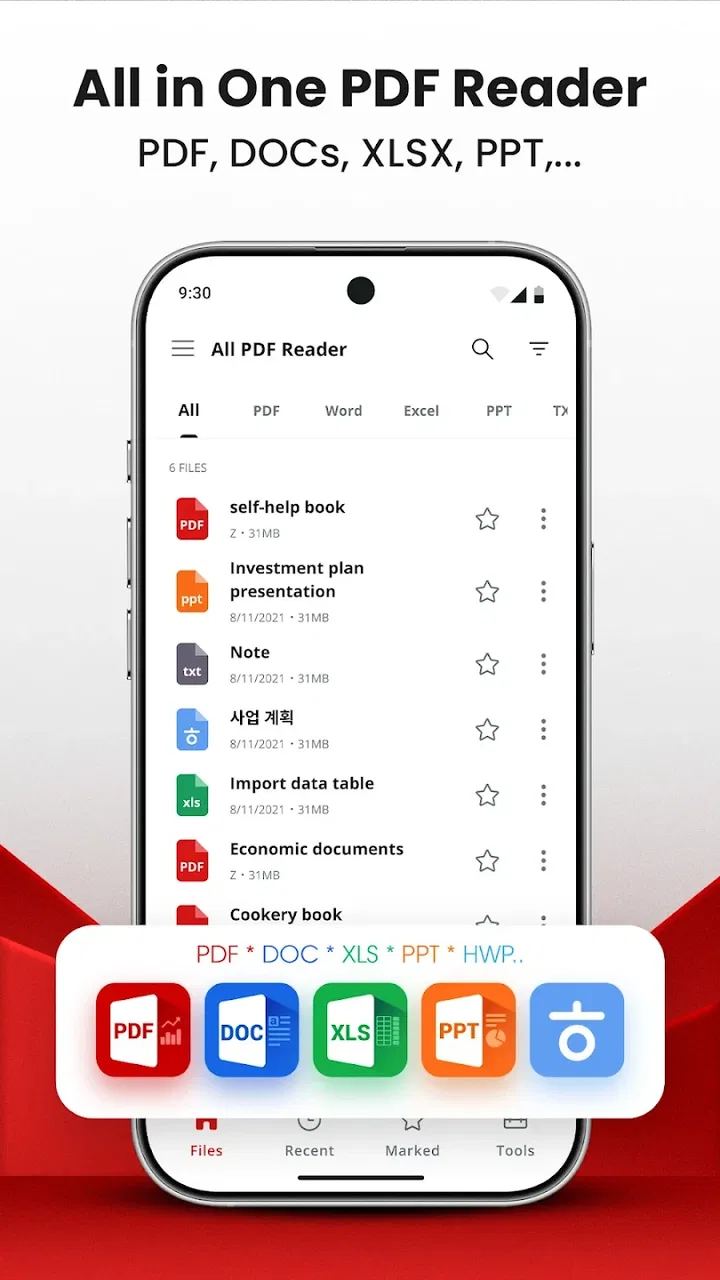
My first impression is that its appeal comes from convenience. Instead of switching between a file manager for finding a document, a reader for opening it, and another utility for making changes, the app aims to keep those steps together. That is especially practical for people who receive forms, invoices, application documents, manuals, or school files through their phone and want to deal with them immediately.
It is a free app in the productivity category from Shark Studio - Awesome Apps, with optional in-app purchases ranging from $4.99 to $29.99 per item. The store lists an Everyone age rating, so it is positioned for a broad audience. The current version is 1.2.1, and it runs on Android 7.0 or later, which makes it accessible even if you are using an older phone.
You May Also Like

 Blood Strike: 2.5 Anniversary
Blood Strike’s Loadouts Turn Every Drop Into a Tactical Gamble
A close look at Blood Strike’s custom loadouts: how fast access to signature weapons reshapes its battle royale rhythm, rewards preparation, and narrows the gap between fights.

 Pandora - Music & Podcasts
Pandora’s Music Is Easy to Start, but Harder to Recover
Pandora’s strength is its low-effort path from a seed to a station. Its weak spot is how much confidence it asks you to place in connection, setup, and quiet recovery.

 8 Ball Pool
 Is Built on Rivalries, Rematches, and Routine
A close look at the rivalries, rematches, shared routines, and unanswered safety questions that turn a quick pool match into a persistent mobile community.

 Samsung Music
’s Quiet Strength Is Playing What You Already Own
Its reach comes less from spectacle than from dependable access to a personal library. That simplicity is both the app’s strongest retention engine and its ceiling.

 AccuWeather: Weather Radar
AccuWeather Review: A Quick, Clear Forecast for Everyday Decisions
For everyday plans, the best forecast is the one you can understand quickly. AccuWeather makes rain timing, radar, and local conditions easy to act on, with a few trade-offs.

 Hill Climb Racing
Why Hill Climb Racing Still Turns Crashes Into One More Run
A tiny car, a bumpy hill and one more upgrade: Hill Climb Racing keeps resurfacing because its simple chaos makes every near-miss feel personal.
More From Our News Desk
View All News


What to expect before opening your first document
The name sets a useful expectation: this is primarily a PDF reader and viewer, with editing, conversion, and file-management tasks included around that central purpose. I would not install it expecting the same depth as a dedicated desktop publishing program. On a phone, the strongest benefit is having common document actions close at hand when you are away from a computer.
That distinction matters because “edit PDF” can mean several different things. Some people only need to add a note, adjust a document, or prepare a file for sharing. Others expect to rewrite paragraphs, rebuild layouts, manage complex forms, or perform detailed professional redaction. Before relying on any mobile PDF app, I recommend thinking about the exact change you need to make. This one makes sense for routine mobile work; highly precise document production is still better handled on a larger screen with a specialist tool.
Reading is the most natural starting point. A PDF can preserve its layout across devices, but that does not always make it comfortable to view on a small display. I found that the practical experience depends as much on the document itself as on the app: a clean text document is easy to inspect, while a dense scanned page may require more zooming and repositioning. That is not a flaw unique to this app, but it is an important part of deciding whether a phone is the right place for the task.
The app has attracted over 500 thousand installs and holds a 3.7 average from 553 ratings, alongside 16 written reviews. Those figures suggest a useful but not universally loved tool, which matches my own balanced view. It can be handy for regular document handling, but I would still test it with the kinds of PDFs I use most before making it my only document utility.
Install with a simple goal in mind
For a first-time user, the best approach is to begin with one ordinary file rather than importing an entire document collection. Choose something that is easy to recognize, such as a saved receipt, a short guide, or a form you already know. This gives you a clear way to judge the app’s basic flow without confusing a setup problem with a document problem.
After installing, look for the route that lets you open an existing file on the device. Android users often keep documents in several places, including downloads, messaging attachments, cloud folders, and email storage. If the file does not appear immediately, use the phone’s normal file-sharing or “open with” route to send it to the reader. That habit is more reliable than assuming every PDF will be automatically grouped in one visible folder.
At this stage, resist the temptation to start editing. First confirm that the correct document opens, that the pages can be viewed comfortably, and that you can return to the document list without losing your place. This small check answers an important practical question: whether the app fits into the way you already receive and store PDFs.
The free installation makes it easy to try this workflow before deciding whether optional purchases are worthwhile. I would postpone any purchase until you have identified a repeated task that the free experience does not handle in the way you need. A PDF app is only valuable if it saves time in your actual routine, not because it offers a long list of possible actions.
Your first meaningful success: read, change, and save one file
A good first success is not simply opening a PDF. It is completing a small end-to-end job: locate one document, inspect it, make a modest change if required, and leave with a usable file. For example, imagine receiving a registration form while commuting. I would open the attachment, read the relevant pages, make the necessary adjustment available through the editing tools, and then save or share the resulting document only after checking it from beginning to end.
That final check is easy to skip on a phone. Editing a document on a narrow screen can make it difficult to notice a shifted line, an overlooked page, or a change that did not land where you expected. I recommend scrolling through every page after an edit, especially when the PDF contains tables, signatures, small print, or mixed page orientations.
Conversion deserves the same caution. Converting a PDF is useful when you need to work with its contents in another format, but the result may not preserve every visual detail in exactly the same way. Treat the converted file as a working copy, not an automatic replacement for the original. Keep the original PDF until you have opened the new version and confirmed that the text, page order, and important visual elements still make sense.
File management is another area where a little discipline pays off. Give edited copies a recognizable name instead of repeatedly saving files with nearly identical labels. A practical naming pattern can include the document purpose and the stage of work, such as “application-review” or “invoice-approved.” This is a small habit, but it prevents the common problem of sending an older copy because several similar PDFs are sitting together.
The safest mobile workflow is original file first, working copy second, final check last. I use that order whenever a document matters. It reduces the chance of overwriting the source and makes it easier to recover if an edit or conversion produces an unexpected result.
Where the everyday value becomes clear
The app is most convincing in short, practical situations. Imagine a colleague sends a PDF schedule and asks you to review one detail before a meeting. You do not need a complete office suite for that moment. You need to open the file quickly, read it without hunting through several apps, make the appropriate adjustment, and return a clean copy. That is the kind of small interruption this app is well suited to reduce.
Students may also find it useful for keeping reading and document handling together. A lesson handout can be opened when needed, checked while travelling, and prepared for later use without moving to a laptop for every minor task. The benefit is less about advanced editing and more about reducing the number of steps between receiving a document and doing something useful with it.
For work, I see a similar advantage with invoices, internal instructions, application paperwork, and reference documents. The app can be a convenient middle layer between communication apps and a more formal records system. I would not treat it as the only archive for important business files, but it can help you inspect and prepare documents before filing them elsewhere.
People who often download PDFs from websites may appreciate the ability to manage those files from one productivity-focused tool. The important habit is to clean up deliberately. If you open everything but never rename, sort, or remove obsolete copies, a reader can become another crowded storage area. The app helps most when you pair it with a simple document routine.
Common confusion and the limits of phone-based PDF work
The first likely confusion is the difference between viewing a PDF and changing its underlying content. A document may look editable because it contains selectable text, yet the available editing action may not behave like typing in a word processor. Layout, fonts, spacing, and embedded elements can make even a small change more complicated than expected.
For that reason, I would use the app confidently for reading and routine document adjustments, but I would be more cautious with a contract, a form with strict alignment, or a file whose appearance must remain exact. In those cases, compare the edited result with the original and, when possible, open it on another device before sending it.
Scanned PDFs can create another source of frustration. A scan is often an image of a page rather than ordinary digital text. Zooming may help you read it, but it does not automatically turn the page into a neatly editable document. If your goal is to extract or rewrite information from a scan, check the result carefully instead of assuming that a conversion will reproduce the page perfectly.
Conversion also involves a trade-off between convenience and fidelity. A converted document may be easier to modify, but its layout can change when the source uses columns, unusual spacing, graphics, or forms. My practical advice is to convert only when you have a clear reason, and to retain the original as the reference copy.
Another question first-time users often have is whether the app is suitable for long reading sessions. It can be useful for checking documents, but comfort depends on page design and screen size. For a large manual or a lengthy book, a tablet, e-reader, or computer may be easier on the eyes. The phone is excellent for access and quick decisions; it is not always the best reading environment for every document.
Privacy is also part of the decision whenever you handle personal paperwork. I would avoid treating a general mobile reader as a substitute for an organization’s approved document system when dealing with sensitive business or identity records. Use the app for the task it solves, keep copies organized, and follow the storage and sharing practices required by your workplace or school.
How it compares with the usual alternatives
The most basic alternative is the PDF viewer already available on a phone. That option may be enough if you only open an occasional document and never need to edit, convert, or organize files. In that situation, installing another app can add unnecessary choice. The reason to try this one is the broader workflow around PDFs, not simply the ability to display a page.
Cloud-based document suites are stronger when collaboration, synchronized files, comments, or office-format editing are central to your routine. They can be the better choice for teams working on shared documents. A dedicated desktop PDF editor is also preferable when you need exact layout control, advanced form handling, or a professional review process.
Where this app has a practical edge is the middle ground: someone who wants more than a viewer but does not need a complete office environment. It can serve as a compact document utility for quick personal tasks. The trade-off is that a focused alternative may do one specialist job more deeply, while a cloud suite may offer better continuity across devices.
I would also compare the purchase prompts with your actual habits. The app is free to start, but optional items cost between $4.99 and $29.99 each. That does not automatically make it poor value, yet it does mean you should identify which actions you use repeatedly before paying. If you only read PDFs, a simpler viewer may be enough. If you regularly prepare files on the go, the broader workflow may justify exploring the paid options.
Who should use it, and who should choose something else
I would recommend giving it a try if you receive PDFs frequently, want one place for reading and document handling, and prefer working from an Android phone rather than waiting until you reach a computer. It is particularly suitable for students, commuters, freelancers, and anyone who deals with routine forms or reference documents during the day.
It is less suitable if your work depends on pixel-perfect publishing, extensive collaboration, complex signatures, or a strict enterprise document process. Those needs call for tools built specifically around precision, teamwork, or controlled storage. The app may still be useful as a viewer, but it should not be forced into a role it was not designed to fill.
Older Android users may also find the minimum operating-system requirement helpful, since the app supports Android 7.0 and later. Even so, the best test is your own phone and your own files. A document workflow that feels quick on a modern device may feel less comfortable on a smaller or slower handset, especially with large or image-heavy PDFs.
My next-step routine after installation
Once you have opened your first file, I suggest testing three separate jobs instead of judging the app from one screen: read a normal PDF, make a small change to a copy, and try a conversion only if you genuinely need one. This reveals whether the app fits your complete routine rather than merely confirming that it can display pages.
Then create a simple rule for important documents. Keep the original, label any working copy clearly, and inspect the final version before sharing it. If you use the app for study materials, separate active files from finished ones. If you use it for work, move final documents into the storage system your team already trusts instead of leaving everything inside a general-purpose reader.
My overall view is positive but measured. PDF Reader - Viewer: Edit PDF is a useful free starting point for mobile PDF work, especially when convenience matters more than advanced desktop-level control. Its combination of reading, editing, conversion, and management can remove friction from ordinary tasks, but the app still deserves a careful trial with your own documents before you depend on it for important files.
For a first-time user, the path is reassuringly simple: install it, open one familiar PDF, complete one small task, and check the saved result. If that process feels natural and the optional purchases match the work you actually do, it can earn a place in your everyday productivity toolkit. If your needs are more specialized, keep it as a handy reader or choose a dedicated alternative that gives you tighter control.
FAQs for PDF Reader - Viewer: Edit PDF
01What features does PDF Reader - Viewer: Edit PDF offer?
PDF Reader - Viewer: Edit PDF provides a comprehensive suite of tools for managing your PDF files. Key features include viewing and annotating PDFs, editing text and images, filling forms, and signing documents. It also supports cloud integration, enabling you to access your files from various devices seamlessly.
02Is PDF Reader - Viewer: Edit PDF free to use?
The app offers a free version with basic functionalities such as viewing and annotating PDFs. However, advanced features like editing and cloud storage integration may require a subscription or one-time purchase. It's important to check the app store for detailed pricing information before downloading.
03Can I use PDF Reader - Viewer: Edit PDF offline?
Yes, you can use PDF Reader - Viewer: Edit PDF offline for reading and basic annotation tasks. However, to access cloud storage features or some advanced editing tools, an internet connection is necessary. This makes it useful for on-the-go tasks but limited without connectivity.
04Is PDF Reader - Viewer: Edit PDF compatible with all devices?
PDF Reader - Viewer: Edit PDF is designed to work on both Android and iOS devices. It supports a wide range of operating system versions, ensuring compatibility with most smartphones and tablets. Always check the app store for specific device requirements to ensure smooth functionality.
05How secure is PDF Reader - Viewer: Edit PDF with my documents?
Security is a priority for PDF Reader - Viewer: Edit PDF, which uses encryption to protect your documents. The app also offers password protection for sensitive files. However, users should be cautious and ensure their devices and cloud accounts are secure to prevent unauthorized access.
Pros
- Intuitive user interface for easy navigation.
- Supports multiple file formats beyond PDFs.
- Offers annotation tools for note-taking.
- Seamless integration with cloud storage services.
- Fast loading times for large documents.
Cons
- Some features require in-app purchases.
- Advertisements can be intrusive at times.
- Limited editing capabilities compared to competitors.
- Compatibility issues with certain file types.
- No offline access for cloud-stored files.

PDF Reader - Viewer: Edit PDF
Gallery